Streaming your favorite movies and shows with friends has become one of the most popular online activities. Whether you’re hosting a virtual movie night or just hanging out, learning how to stream Disney Plus on Discord can take your experience to the next level. With platforms like Discord and Disney+, it’s easier than ever to share entertainment in real time.
This comprehensive guide will walk you through everything you need to know, from setup to troubleshooting, while also touching on trending topics like Blue Lock Rivals codes and gaming communities.
What Is Discord Streaming?
Discord is widely known as a communication platform designed for gamers, creators, and communities. One of its standout features is screen sharing, which allows users to broadcast their screen to others in a server or private call.
This feature makes it possible to stream content from Disney Plus, enabling friends to watch movies together—even if they’re miles apart.
Why Stream Disney Plus on Discord?
Streaming Disney Plus on Discord offers several advantages:
Social Viewing Experience
Watching alone can feel isolating, but streaming with friends brings back the joy of group entertainment.
Real-Time Interaction
You can chat, react, and discuss scenes instantly through voice or text channels.
Perfect for Communities
Many Discord servers, including gaming ones focused on topics like Blue Lock Rivals codes 2026 or tier lists, host watch parties to engage members.
Requirements Before You Start
Before you begin streaming, make sure you have the following:
- A stable internet connection
- A Disney Plus subscription
- A Discord account
- A desktop or laptop (recommended for best performance)
- Updated browser or app
Step-by-Step Guide: How to Stream Disney Plus on Discord
Step 1: Open Discord and Join a Server
Launch Discord and join a server where you want to stream. You can also start a private call with friends.
Step 2: Open Disney Plus
Go to the Disney Plus website or app and log into your account.
Step 3: Disable Hardware Acceleration
This is a crucial step to avoid a black screen issue.
For Google Chrome:
- Open Settings
- Go to System
- Turn off “Use hardware acceleration when available”
For Discord:
- Open Settings
- Navigate to Advanced
- Disable Hardware Acceleration
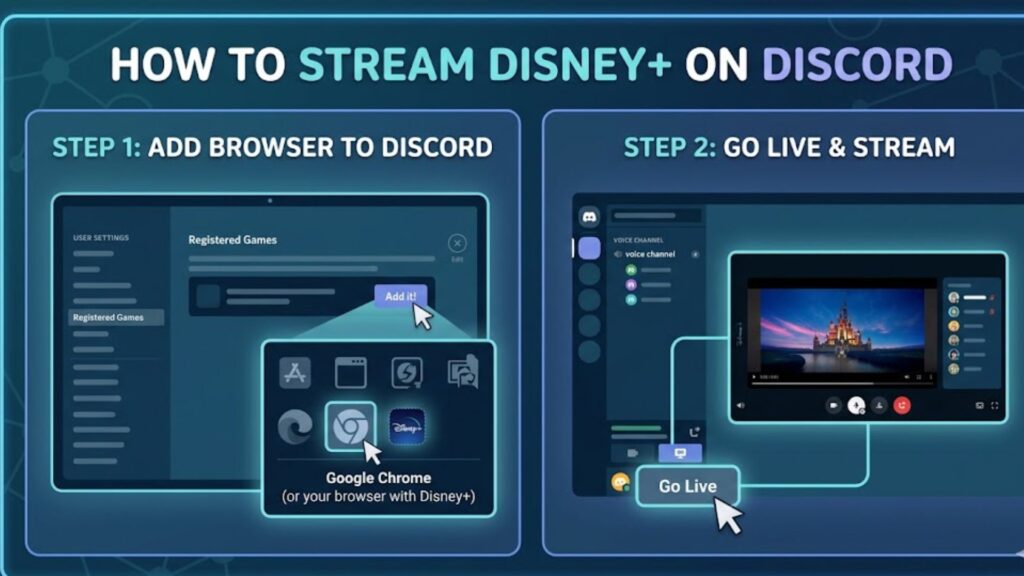
Step 4: Add Browser as a Game
- Go to Discord Settings
- Click on “Registered Games”
- Add your browser (Chrome, Edge, etc.)
Step 5: Start Screen Sharing
- Join a voice channel
- Click “Share Screen”
- Select your browser window with Disney Plus
- Set resolution and frame rate
- Click “Go Live”
Now your friends can watch Disney Plus with you in real time.
Best Settings for Smooth Streaming
To ensure high-quality streaming, use these settings:
- Resolution: 720p or 1080p
- Frame Rate: 30 FPS (60 FPS if you have Nitro)
- Stable Wi-Fi or Ethernet connection
Discord Nitro users get better streaming quality, which enhances the experience significantly.
Fixing Common Issues
Black Screen Problem
This is the most common issue when streaming Disney Plus.
Solution:
- Disable hardware acceleration
- Use a different browser
- Restart Discord
No Audio
If viewers can’t hear sound:
- Make sure “Share Audio” is enabled
- Check system sound settings
- Restart the stream
Lag or Buffering
- Lower resolution
- Close background apps
- Upgrade internet speed
Is It Legal to Stream Disney Plus on Discord?
Streaming Disney Plus on Discord for personal use with friends is generally acceptable. However, broadcasting copyrighted content publicly or monetizing it may violate terms of service.
Always use this feature responsibly and within platform guidelines.
Tips for a Better Watch Party
Use Voice Chat
Talking during the stream makes it more interactive and fun.
Create a Schedule
Plan movie nights in advance so everyone can join.
Use Bots
Some Discord bots can help manage events or remind users about watch sessions.
Disney Plus Content Ideas for Streaming
Here are some great categories to explore:
- Marvel movies
- Star Wars series
- Pixar animations
- Disney classics
These genres are perfect for group viewing and discussions.
Connection to Gaming Communities
Interestingly, many Discord servers that stream Disney Plus are also focused on gaming topics like:
- Blue Lock Rivals codes 2025
- Blue Lock Rivals tier list
- Basketball Zero codes
- Blue Lock Rivals Legacy codes
These communities often mix gaming and entertainment, hosting both code-sharing discussions and movie nights.
When Will New Blue Lock Rivals Codes Come Out?
Although not directly related to streaming, this is a common question in Discord communities.
New codes typically release:
- During game updates
- On special events
- When milestones are reached
Staying active in Discord servers helps you catch these updates quickly.
Advantages of Streaming on Discord vs Other Platforms
Free to Use
Discord offers free streaming without requiring premium subscriptions (basic features).
Community Integration
Unlike standalone streaming apps, Discord allows seamless integration with communities.
Flexibility
You can stream not just Disney Plus but also games, YouTube, and more.
Limitations to Be Aware Of
While Discord streaming is powerful, it has some drawbacks:
- Limited resolution without Nitro
- Occasional lag
- Requires manual setup
Despite these, it remains one of the best tools for shared viewing.
Future of Streaming on Discord
As online communities grow, streaming features are expected to improve. Discord may introduce:
- Better video quality
- Easier integration with streaming platforms
- Enhanced watch party tools
This will make streaming Disney Plus even more seamless in the future.
FAQs
How do I stream Disney Plus on Discord without a black screen?
Disable hardware acceleration in both your browser and Discord settings. This usually fixes the issue.
Can I stream Disney Plus on Discord mobile?
Currently, streaming Disney Plus works best on desktop. Mobile devices have limited functionality.
Do I need Discord Nitro to stream Disney Plus?
No, but Nitro improves video quality and frame rate.
Why is there no sound when streaming Disney Plus?
Make sure you enable the “Share Audio” option when starting screen sharing.
Is streaming Disney Plus on Discord safe?
Yes, as long as you’re using official apps and not sharing sensitive information.
Can I stream in HD quality?
Yes, but higher resolutions may require Discord Nitro for the best experience.
What internet speed is required?
At least 5 Mbps is recommended, but higher speeds provide smoother streaming.
Final Thoughts
Learning how to stream Disney Plus on Discord opens up a new way to enjoy entertainment with friends and communities. Whether you’re hosting a movie night or combining it with gaming discussions like Blue Lock Rivals codes December 2025, Discord offers a flexible and engaging platform. By following the steps in this guide and optimizing your settings, you can create a smooth and enjoyable streaming experience. As online interactions continue to evolve, combining streaming and community engagement will only become more popular.